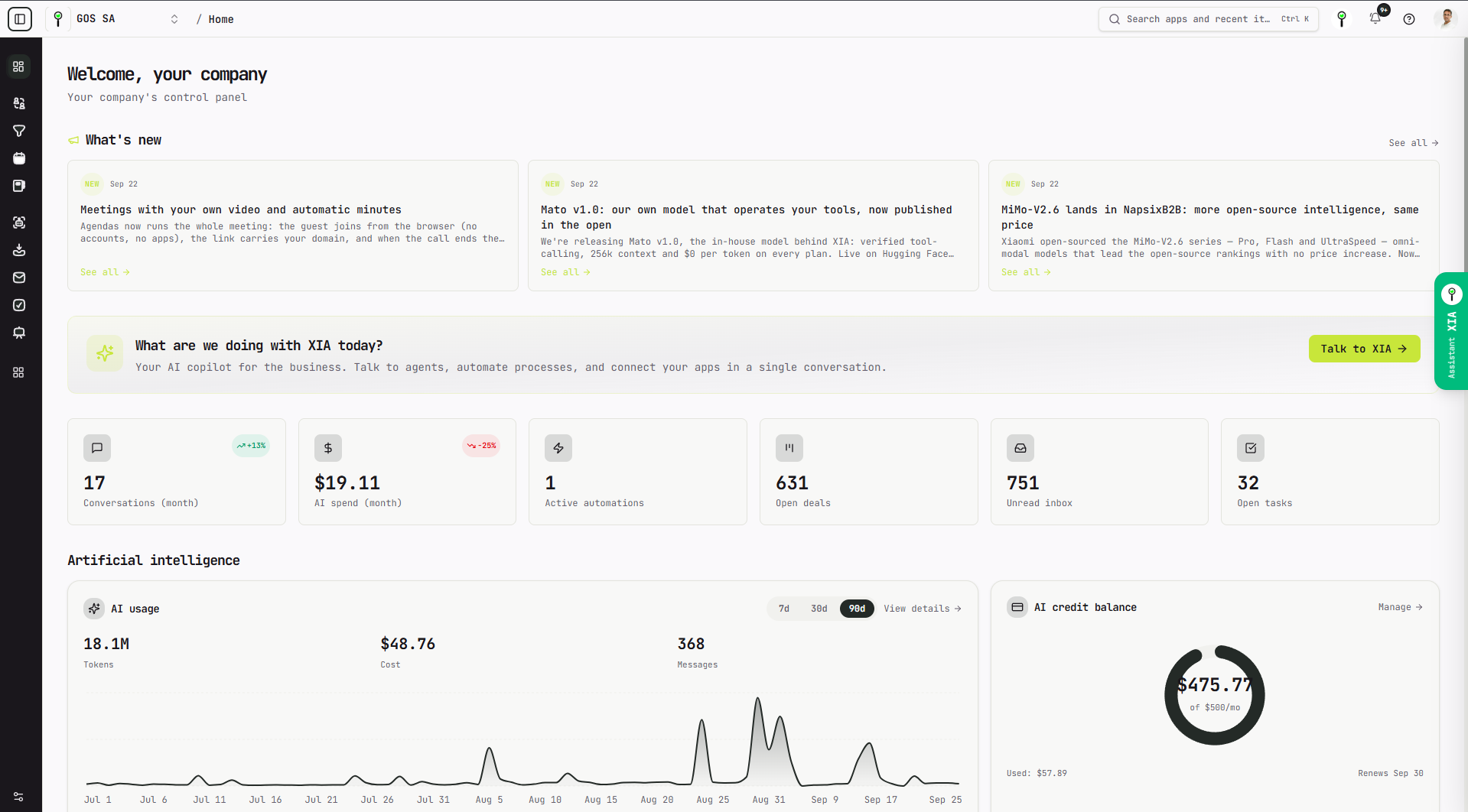
We refreshed the NapsixB2B interface to help you find your tools with less navigation and give your work more room on screen. You will notice an always-available top bar, simpler side navigation and better-organized conversation spaces.
The cover shows Home with compact navigation. The screenshots in this guide use English; labels adapt to your selected language. Branding, available apps, models and indicators may vary by organization, permissions and plan. Amounts shown belong to the pictured account and are not a pricing offer.
A clearer map of your workspace
The screen now has four distinct areas:
- At the top, global context: your active organization, current app, search, XIA, notifications, help and profile. The bar stays accessible while you work.
- On the left, your destinations: Home, Favorites, Quick access and All apps.
- Inside each app, a contextual panel: conversations, folders, views or filters, depending on the workspace. Hide it when you need more width.
- In the center and on the right, work and assistance: the main content and XIA Assistant fit into separate panels.
Open the top search bar with Ctrl+K or ⌘K to find apps and recent items without scrolling through the entire menu.
Navigation that adapts to you
Use Sidebar display, at the bottom of the sidebar, to choose your navigation mode:
- Expanded: icons and names stay visible.
- Collapsed: an icon rail frees up horizontal space.
- Expand on hover: reveal names when you move over the rail, without shifting your work.
On mobile, use the menu button to open and close navigation; hovering is not required.
Favorites and Quick access work together. Pinning an app no longer replaces your everyday shortcuts. XIA Chats, Inbox, Mail, My tasks and Projects remain easy to reach. Pin one of these apps and it moves to Favorites without a duplicate; unpin it and it returns to Quick access. You can also reorder your favorites.
Find the rest of your tools in All apps, organized by area with a search field. Use an app's pin to add it to or remove it from Favorites.
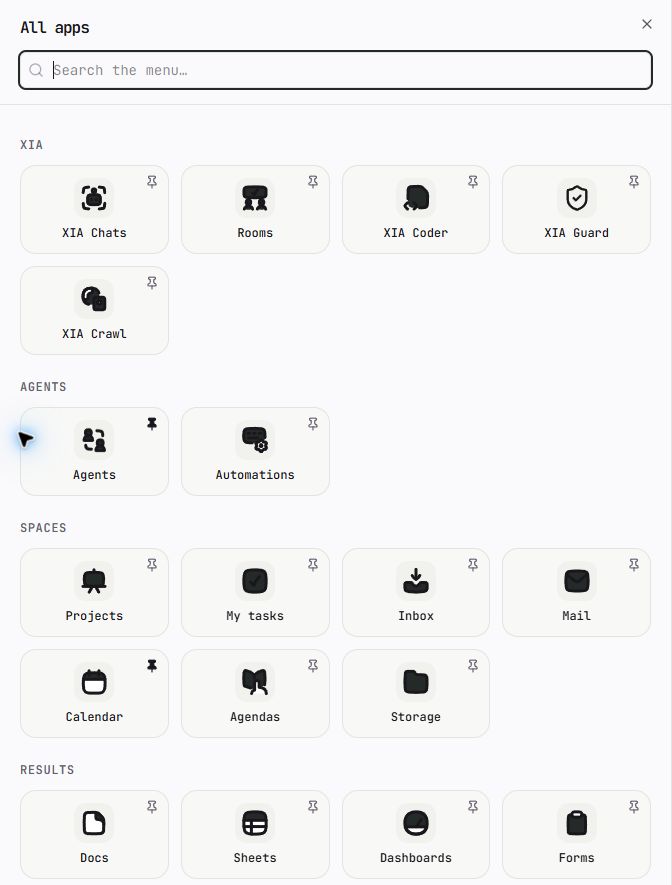
Screenshot: apps are grouped by area. A filled pin means the app is already in Favorites.
XIA Chats: more room for the conversation
We rearranged the controls to keep the conversation at the center:
- Conversations, usage and plan, balance and help share a compact context bar. On small screens, they wrap onto additional lines.
- Show, hide or resize the conversation history independently of the main navigation.
- Agents and presets share one selector with clearly identified groups.
- Model and memory sit next to the message box, where you decide how to send your next message.
- Hover over or keyboard-focus the paperclip to check supported file formats and the maximum attachment size. The duplicate footer text has been removed to recover space.
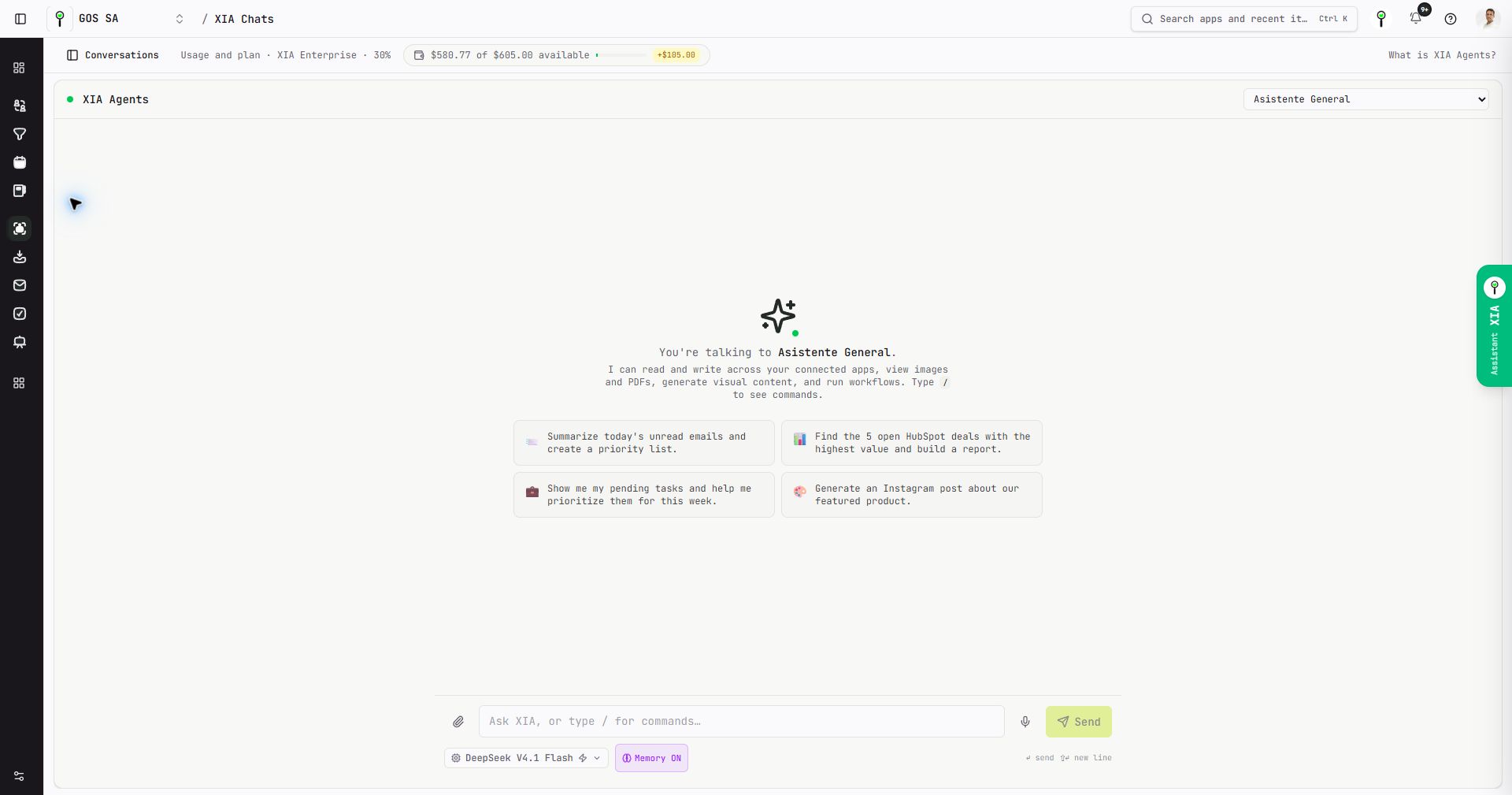
Screenshot: Conversations reopens the history panel. The agent selector is at the top; model and memory controls are below the message box.
XIA Assistant and detail panels, side by side
Open XIA Assistant from its logo in the top bar or the green tab on the right edge. The main workspace and assistant have rounded corners again, with a clear visual separation.
XIA Chats is your workspace for conversations with agents. XIA Assistant provides contextual help with the platform, the current screen and its features. They are separate spaces.
On desktop, Pipeline, task and contact detail panels can stay open alongside XIA Assistant. Open the assistant first or the detail first: each keeps its own close control, and the assistant is not hidden behind the other panel. Drag XIA's edge to adjust its width.
On smaller screens, the detail you are viewing takes priority. The assistant temporarily steps aside and returns when you close the detail if it was previously open. Confirmations and other blocking dialogs also take priority until you resolve them.
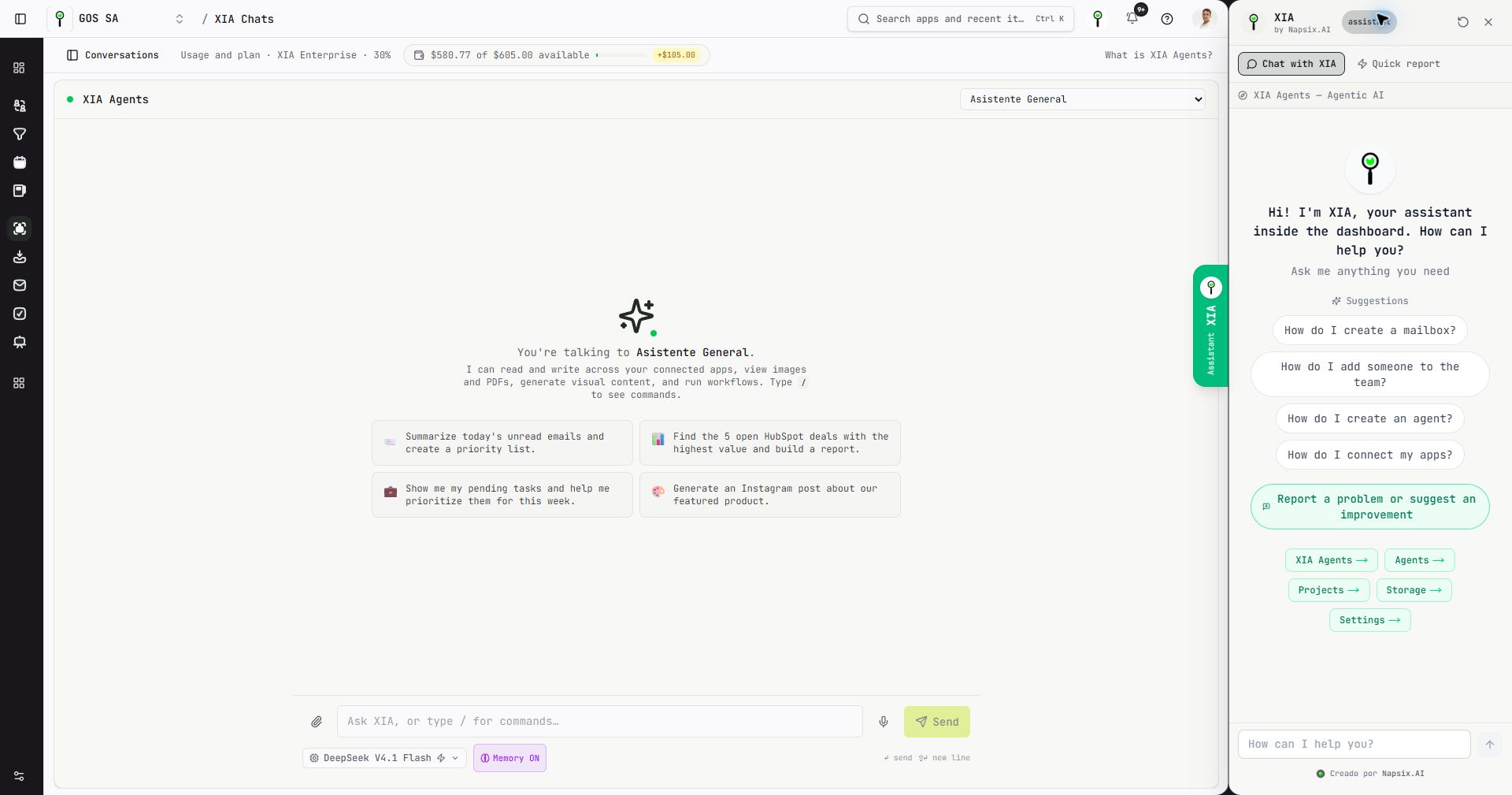
Screenshot: the workspace is on the left and XIA Assistant is on the right. The green tab makes the assistance panel easy to recognize and control.
Your profile, your organization and a more consistent identity
Your avatar in the upper-right corner opens account and preference options. In Settings → Account, upload a photo, use an HTTPS image link or remove it. Avatars use a square 1:1 format; uploads support JPEG, PNG and WebP up to 4 MiB and are cropped automatically.
The organization switcher now shows each company's logo when configured, with a fallback when an image is unavailable. Your active organization remains visible at the top to help you recognize where you are working.
App and action icons now share the public website's visual identity, alongside refinements to cards, tabs and controls. Date fields in Forms include a calendar, and dashboards keep their charts with a more consistent presentation. Notifications and pickers fit within the screen to make them easier to use.
Try it in a minute
- Open All apps and pin your most-used tools.
- Choose a sidebar mode and hide the contextual panel when you need more room.
- Visit XIA Chats to try the updated composer, or open XIA Assistant while reviewing a task or lead.
Your data, conversations, permissions and plan terms remain in place. This refresh reorganizes access and makes better use of the screen; each app keeps its tools and purpose.
For guidance, open XIA Assistant from the top logo or green tab. You can also use Report a problem or suggest an improvement inside the assistant to tell us how the new interface works for you.
